
Senior Frontend Engineer
Callin’s primary goal as a frontend engineer is translating designs into working, interactive pieces of the internet. He’s also responsible for building systems that allow existing designs to extend to new features without feeling out of place.
July 28, 2026
A developer joins a WordPress project and asks the question every team hopes will be easy to answer:
“How do I get this running locally?”
The answer should be simple. Clone the repository. Install dependencies. Load the database. Build the theme. Start working.
But on many WordPress projects, the real answer is more fragile. Install these plugins by hand. Make sure this setting is checked in wp-admin. Don’t update that plugin yet. Copy these field groups from staging. The theme has custom logic in functions.php, but some of it may not be used anymore.
That version of WordPress feels outdated.
The issue isn’t WordPress itself. It’s how teams treat the project. WordPress feels old when it becomes a collection of admin settings, manually installed plugins, and theme files that slowly absorb every responsibility.
It feels modern when teams treat it like software.
Treat WordPress like an application
The first step toward modern WordPress is changing the project structure.
A maintainable WordPress project should be reproducible from code, not assembled by hand in wp-admin. That is where tools like Bedrock and Composer help.
Composer lets the project declare exactly which PHP libraries, plugins, themes, and WordPress version it needs. Bedrock builds on that idea by giving WordPress a more application-like structure. WordPress core lives in its own directory, custom code lives in a separate application directory, and environment-specific settings live outside the codebase.
In other words, Bedrock helps WordPress behave less like a manually assembled CMS and more like a predictable PHP application.
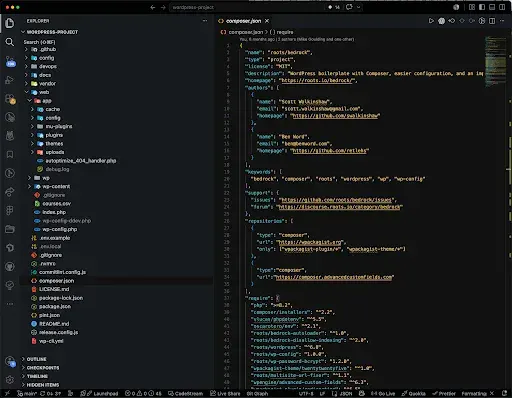
In the example composer.json file below, WordPress core, Timber, and the Redirection plugin are all declared as project dependencies. The extra section tells Composer where WordPress, plugins, and themes should be installed.
{
  "require": {
    "roots/wordpress": "^6.8",
    "timber/timber": "^2.3",
    "wpackagist-plugin/redirection": "^5.5"
  },
  "extra": {
    "wordpress-install-dir": "web/wp",
    "installer-paths": {
      "web/app/plugins/{$name}/": ["type:wordpress-plugin"],
      "web/app/themes/{$name}/": ["type:wordpress-theme"]
    }
  }
}
This matters because drift is one of the quietest risks in WordPress maintenance. Local, staging, and production slowly stop matching. A plugin exists in one place but not another. A production update changes behavior before anyone has reviewed it.
A lockfile makes dependency versions repeatable. A structured install path separates WordPress core from custom code. The project becomes something the team can rebuild, not something they have to remember.
Production should reflect that discipline, too.
Within config/application.php, we can disable file edits and plugin/theme changes from wp-admin. This helps prevent production from becoming the place where unreviewed code changes happen.
<?php
// Disable the theme and plugin file editor in wp-admin.
Config::define('DISALLOW_FILE_EDIT', true);
// Disable plugin/theme installation and updates from wp-admin.
Config::define('DISALLOW_FILE_MODS', true);
The issue isn’t that site owners can change WordPress through the dashboard. It’s that critical changes should not live only there.
Put configuration under version control
A modern WordPress project should avoid hiding important configuration in the database whenever possible.
Some values belong outside the repository. Database credentials, environment names, salts, and production URLs should come from environment variables. An environment variable is a value provided by the server or hosting platform instead of being hardcoded into the project.
Bedrock makes this pattern feel natural.
Within config/application.php, we can read environment-specific values from the server instead of hardcoded in the repository.
<?php
// Set the current environment.
// Example values might be local, staging, or production.
define('WP_ENV', env('WP_ENV') ?: 'production');
// Read database and URL settings from environment variables.
Config::define('DB_NAME', env('DB_NAME'));
Config::define('WP_HOME', env('WP_HOME'));
Config::define('WP_SITEURL', env('WP_SITEURL'));
That gives each environment its own settings without changing application code. Local, staging, and production can behave differently while still sharing the same repository.
Reusable configuration should live in the repository.
ACF, or Advanced Custom Fields, is a common WordPress tool for creating structured editing fields. It can define things like hero banner fields, card fields, staff profile fields, custom post types, and taxonomies. Without a system for exporting those settings, much of the content model can become trapped in the database.
ACF Local JSON helps solve that. It saves field group configuration as JSON files in the codebase so the team can review and deploy content architecture changes through Git.
Within the theme setup, we can tell ACF where to save and load those JSON files.
<?php
add_filter('acf/settings/save_json', function () {
    // Save ACF JSON files into a dedicated config directory.
    return get_stylesheet_directory() . '/config/acf-json';
});
add_filter('acf/settings/load_json', function ($paths) {
    // Remove the default ACF path.
    unset($paths[0]);
    // Load field groups from the version-controlled config directory.
    $paths[] = get_stylesheet_directory() . '/config/acf-json';
    return $paths;
});
Now a developer can update a field group locally, commit the JSON change, open a pull request, and let the team review it like any other code change.
If a setting affects how the site works, the team should be able to review it.
This is not just about developer preference. It makes onboarding and debugging easier and it makes deployments safer.
Keep functionality out of the theme
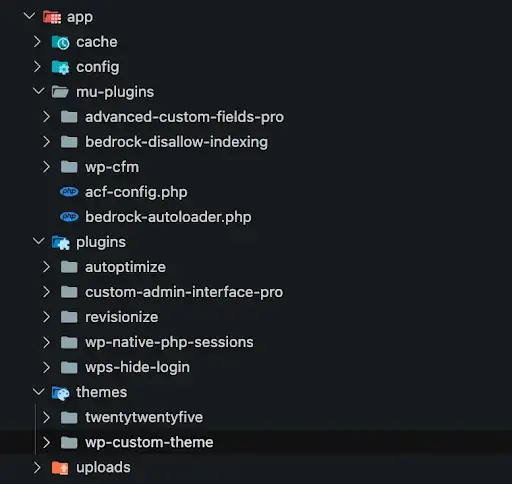
One of the most common WordPress maintenance problems is letting the theme become responsible for everything.
At first, it feels convenient. A small filter goes in functions.php. Then a custom post type. Then a menu customization. Then an integration. Over time, the theme becomes a dumping ground for business logic, editorial workflows, admin behavior, and display code.
That creates a problem when the site needs a redesign.
A theme should own presentation: templates, styles, frontend behavior, and view-specific rendering. Functionality that should survive a redesign usually belongs in a plugin or must-use plugin. WordPress loads a must-use plugin, often called an mu-plugin, automatically. This is useful for site-specific behavior that should not be casually disabled.
Navigation is a useful example. If editors need a custom checkbox to mark a menu item as featured, that admin behavior belongs in a small plugin. The theme can then decide how a featured menu item looks when rendered.
Within a custom plugin, we can add the editorial controls for navigation management. This belongs in a plugin because the site may still need this behavior after a redesign.
<?php
/**
 * Plugin Name: Site Navigation Tools
 * Description: Adds editorial controls for navigation management.
 */

namespace App\Navigation;

// Add a custom field to each menu item in wp-admin.
add_action('wp_nav_menu_item_custom_fields', __NAMESPACE__ . '\\render_menu_item_fields', 10, 4);
// Save the custom field when the menu item is updated.
add_action('wp_update_nav_menu_item', __NAMESPACE__ . '\\save_menu_item_fields', 10, 3);

function render_menu_item_fields($item_id, $item, $depth, $args) {
    // Read the saved value for this menu item.
    $featured = get_post_meta($item_id, '_featured_menu_item', true);
    ?>
    <p class="field-featured-menu-item description">
        <label>
            <input
                type="checkbox"
                name="featured_menu_item[<?php echo esc_attr($item_id); ?>]"
                value="1"
                <?php checked($featured, '1'); ?>
            >
            Feature this item in navigation
        </label>
    </p>
    <?php
}

function save_menu_item_fields($menu_id, $menu_item_db_id, $args) {
    // Save "1" when checked. Save an empty value when unchecked.
    $value = isset($_POST['featured_menu_item'][$menu_item_db_id]) ? '1' : '';

    update_post_meta($menu_item_db_id, '_featured_menu_item', $value);
}
The theme renders the menu, but it does not own the admin behavior.
{% for item in menu.items %}
  <a href="{{ item.url }}" class="{{ item.featured ? 'menu-item--featured' }}">
    {{ item.title }}
  </a>
{% endfor %}
The plugin owns the data and editorial control. The theme owns the markup and presentation.
The rule of thumb is simple: Put it in the theme if removing the theme should remove the behavior. Put it in a plugin if the site still needs the behavior after a redesign.
Use Timber and Twig to separate data from markup
Modern frontend work depends on clear boundaries. Traditional WordPress templates often mix data fetching, conditional logic, and markup in the same PHP files. That can work for small sites, but it becomes difficult to scan and reuse as the project grows.
Timber helps separate those responsibilities.
Timber is a WordPress library that lets themes use Twig templates. Twig is a templating language designed for rendering markup. The pattern is straightforward: PHP prepares the data, and Twig handles the display.
That separation makes WordPress themes easier to read. Backend developers can prepare clean context. Frontend developers can work in templates that look closer to HTML.
Within the theme setup, we can add shared data to Timber’s global context. In this example, the primary WordPress menu becomes available to Twig templates as menu_main.
<?php

use Timber\Timber;

add_filter('timber/context', function ($context) {
    // Fetch the WordPress menu once and make it available to Twig.
    $context['menu_main'] = Timber::get_menu('primary');
    return $context;
});
The theme can also register namespaced template paths. This lets templates refer to components and layouts by clear names instead of long relative paths.
<?php
add_filter('timber/loader/loader', function ($loader) {
    // Allows templates to include files from @components.
    $loader->addPath(__DIR__ . '/../src/components', 'components');
    // Allows templates to include files from @layout.
    $loader->addPath(__DIR__ . '/../src/layout', 'layout');
    return $loader;
});
Then Twig templates can include reusable components without knowing how the data was fetched.
{% include '@components/navigation/main/main.twig' with {
  items: menu_main.get_items
} %}
The issue isn’t PHP. It’s mixing data, decisions, and markup until every template becomes harder to change.
Build the frontend as a component system
A modern WordPress theme should not be a pile of page templates.
It should be a frontend system made of reusable components.
Each component can have its own template, styles, scripts, metadata, and example content. A hero banner is not just markup on the homepage. It is a component with defined fields, expected data, design rules, and accessibility requirements.
Storybook can support this work by giving teams a place to build and review components outside of WordPress. That matters because a component should not need a fully built CMS page before designers, developers, and QA can evaluate it.
WordPress block metadata can act as a bridge between the CMS and the component system. A block.json file tells WordPress how a block should appear in the editor, what assets it uses, and which features it supports.
In the example block.json file below, WordPress gets the basic information it needs to register a Hero Banner block. ACF powers the editing interface, while the theme can still render the frontend through the component system.
{
  "$schema": "https://schemas.wp.org/trunk/block.json",
  "name": "site/hero-banner",
  "title": "Hero Banner",
  "category": "design",
  "style": "file:./hero-banner.css",
  "supports": {
    "html": false
  },
  "acf": {
    "mode": "preview"
  }
}
ACF can provide the editing fields. Twig can render the component using the same template patterns used elsewhere in the theme.
{% set heading = fields.heading ?? block.data.heading %}
{% embed '@layout/container/container.twig' with {
  container_width: 'full',
  container_modifiers: ['hero-banner']
} %}
  {% block container_content %}
    <h1>{{ heading }}</h1>
  {% endblock %}
{% endembed %}
This keeps the frontend consistent. It also gives editors better tools. Instead of assembling pages from one-off layouts, they choose from approved components that already respect the design system.
Accessibility improves, too. When we test accessibility at the component level, every use of that component benefits.
Govern the editor experience
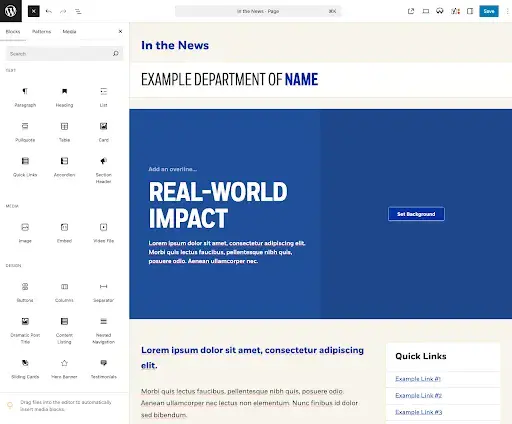
Modern WordPress does not mean giving editors every possible option.
It means giving editors the right options.
Unlimited flexibility sounds generous, but it often creates design debt. Pages start to drift. Spacing becomes inconsistent. Unsupported color combinations appear. Editors spend time making design decisions the system should have already solved.
A thoughtful block allowlist can help. A block allowlist controls which blocks are available in the editor. This lets the team shape the editing experience around the content type instead of giving every editor every possible tool.
Within a custom plugin, we can define which blocks are available to editors. This belongs in a plugin because it governs the editing experience across the site. It is not just a theme display concern.
<?php
add_filter('allowed_block_types_all', function ($allowed_blocks, $context) {
    // Blocks available to most content types.
    $default_blocks = [
        'core/heading',
        'core/paragraph',
        'core/image',
        'core/list',
        'acf/site-card',
        'acf/site-accordion',
    ];
    // Landing pages get one additional layout-focused block.
    if ($context->post && get_post_type($context->post) === 'landing_page') {
        $default_blocks[] = 'acf/site-hero-banner';
    }
    return $default_blocks;
}, 20, 2);
Patterns can help, too. A pattern is a reusable arrangement of blocks. It can give editors a strong starting point for common page types without asking them to rebuild the same structure over and over.
In the example pattern configuration below, the site defines an Interior Page pattern that is only available for standard pages.
{
  "name": "site/interior-page",
  "title": "Interior Page",
  "description": "A structured starting point for standard interior pages.",
  "postTypes": ["page"],
  "viewportWidth": 1280
}
Editors still have flexibility, but they are not starting from a blank canvas every time.
Good governance makes editors faster because they are choosing from approved tools instead of rebuilding design decisions on every page.
The issue isn’t editor freedom. It’s unsupported freedom.
Make repeatability the real goal
Modern WordPress is not defined by one tool.
Bedrock helps. Composer helps. Timber, Twig, ACF Local JSON, Storybook, custom plugins, block metadata, and editor governance all help.
But the real goal is repeatability.
A developer should be able to clone the project and understand how to install it. A reviewer should be able to see what changed. A deployment should move code and configuration predictably. A content editor should have stable, well-defined tools. A future redesign should not require untangling years of backend logic from theme templates.
Repeatability usually comes from turning common project tasks into named commands.
A project-level package.json can document the commands developers are expected to run. This file usually lives at the root of the repository, next to files like composer.json.
In the example package.json file below, the scripts define shared commands for setup, theme builds, and code quality checks.
{
  "scripts": {
    "setup": "./devops/scripts/setup.sh",
    "theme-build": "./devops/scripts/theme-build.sh",
    "lint": "npm run lint:php && npm run lint:js && npm run lint:styles"
  }
}
The script names matter because they create a shared language. Instead of asking a new developer to remember a list of setup steps from a wiki page, the project can give them one command.
npm run setup
That command might run a shell script that installs dependencies, creates a local environment file, builds the theme, and runs project checks.
#!/usr/bin/env bash
# Give developers one repeatable command for setting up the project locally.
set -e
echo "Installing PHP dependencies..."
composer install
echo "Installing frontend dependencies..."
npm install
echo "Creating a local environment file if one does not exist..."
if [ ! -f .env ]; then
  cp .env.example .env
fi
echo "Building theme assets..."
npm run theme-build
echo "Running project checks..."
npm run lint
echo "Setup complete."
A real project might do more. It might import a local database, run WP-CLI commands, sync media, generate login links, or start a local development environment. The specific tasks will vary.
The principle should not.
When teams capture setup, builds, linting, and deployment steps as scripts, the project becomes easier to trust. New developers have a clear path in. Existing developers make fewer mistakes. Code review can focus on the work itself instead of hidden environmental differences.
This is the larger point: Modern WordPress is not about chasing tools. It is about reducing guesswork.
Bedrock, Composer, Timber, Twig, ACF Local JSON, Storybook, custom plugins, block metadata, and editor governance are all useful. But they are not the goal by themselves. The goal is a WordPress project that a team can understand, review, rebuild, and improve without depending on one person’s memory.
That shift does not have to happen all at once.
For many teams, the best place to start is the part of the project that feels most fragile today. Maybe plugin versions are unclear. Maybe field groups only exist in the database. Maybe important functionality is buried in functions.php. Maybe onboarding still depends on a long wiki page and a developer who knows the missing steps.
Start there.
Move that knowledge into the codebase, the configuration, or a repeatable command. Then do it again.
A modern WordPress project should make the important things visible. Dependencies should be declared. Configuration should be reviewable. Functionality should have a clear home. Components should be reusable. Editor options should be intentional. Common tasks should be repeatable.
That is what makes WordPress feel modern.
Not a new coat of paint. Not a trendy stack for its own sake. A project that can survive handoffs, redesigns, new developers, and future change because the way it works is no longer hidden.
If your WordPress site relies on admin clicks, undocumented setup steps, or one person knowing where everything lives, that is the place to start modernizing.
Making the web a better place to teach, learn, and advocate starts here...
When you subscribe to our newsletter!